Debates and Committee Transcript Search

How the Search Tool Works
This search tool allows users to access information in the Debates of the Senate (Hansard) as of March 2010 and evidence from Senate committees as of November 2017. Search results will include hits from the most recent versions of these publications as soon as they are posted online.
This tool can be used to search the following:
- Full content of Chamber or committee interventions
- Debate headings, subheadings and sitting segments
- Bills by number (e.g., S-3)
- Senators’ and witnesses’ names
- Organizations (for committee witnesses)
- Committee acronyms
- Recognized parties or parliamentary groups in the Senate
Results can be further refined using the available filters.
Basic Search
The basic search returns results containing all search terms entered (i.e., the search tool inserts an implicit [AND] operator between each term).
Results
Search results are returned in reverse chronological order, with the most recent interventions appearing first. In addition to seeing the entire content of an intervention, users can easily navigate to the previous or next intervention to see the full context of the debate. Users can also find links to view or listen to video or audio recordings of an intervention, access transcripts from the Debates or committee meetings and view the Journals of the Senate, as well as senators’ online biography pages.
Capitals/lowercase and accents
All searches are case and accent insensitive.
Word variations
Except for exact phrase searches and wildcard searches, the search tool applies stemming algorithms and other logic to include similar words and increase the relevance of the search results returned (e.g., stop words are ignored, singular and plural forms of words and different verb tenses are returned, etc.).
Example: A search for “Nationality” will also return results for nation, nations and national, etc.
Searches within a particular time period
The search tool returns results from the current session of Parliament by default. Use the date filter to specify a desired date range or to select a different Parliament and session. To search for a specific date only, uncheck the “Date range” box and select the desired date. Users may also select “All Debates” or “All Meetings” under the Date filter preset options to search all publications in the system, regardless of date.
Searches in English or French content
Using the radio buttons above the basic search box, users can specify whether they want to search English or French content, while maintaining the language of the webpage in English. It is important to note that a French content search on the English webpage will only display the content results in French; all other aspects of the page, including tags, filters, etc., will remain in the language of the web page.
Advanced Search Options
Exact phrase search
Insert quotation marks at the beginning and end of a phrase to perform an exact phrase search in any of the search boxes. The search criterion entered in a search box must start and end with a quotation mark, otherwise the entire criterion will not be taken as an exact search. In other words, it is not possible to add additional search terms outside of the quotation marks within the same search box. Users may add additional search terms using the “Add search criteria” option.
An exact phrase search is case and accent insensitive.
- Example: A search for “Transport Canada” will not include results for “Transport of hazardous materials in Canada”
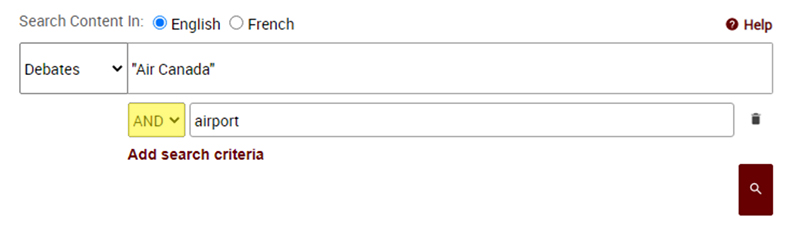
- Example: To search for “Air Canada” AND airport, use two search boxes with the AND operator as follows:
Additional Search Criteria
Up to four additional search criteria may be added by clicking on the “Add search criteria” button below the basic search box.
- The AND operator ensures that both search criteria are present in the results.
Example: A search for Red AND Chamber will return results with both these terms.
- The OR operator ensures that at least one search criteria is present in the results.
Example: A search for Red OR Chamber will return results containing at least one of these terms.
- The NOT operator excludes search criteria from the results.
Example: A search for Red NOT Chamber will return results containing the word Red but will exclude all results containing the word Chamber.
Wildcards
The search tool also supports the use of wildcards in all search boxes. Wildcard searches can only be done at the end or in the middle of a term. A “?” or “*” symbol cannot be used as the first character of a search term.
- To perform a single-character wildcard search, use the “?” symbol in place of a single character.
Example: A search for “wom?n” returns woman and women.
- To perform a multiple-character wildcard search, use the “*” symbol in place of zero or more characters.
Examples: A search for “p*diatric” returns pediatric and paediatric
A search for “contamin*” returns contaminate, contaminated, contamination, contaminants, etc.